
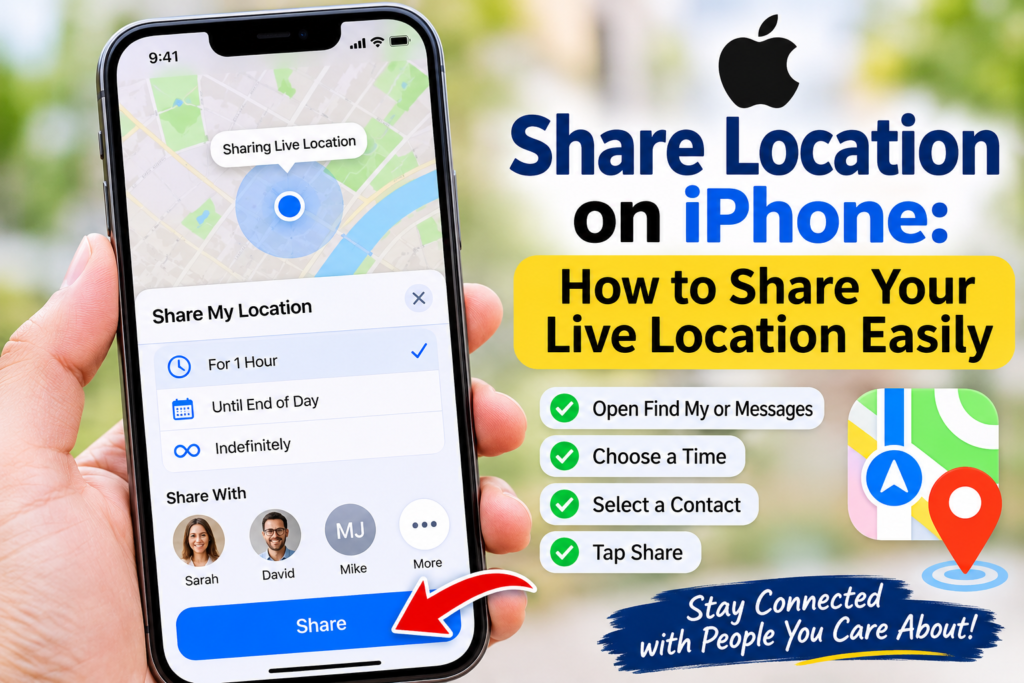

Sharing your location can make everyday life much easier. You can help friends find you, update family members, or meet someone without confusion. Apple offers several simple tools for this purpose. You can use Find My, Messages, and Apple Maps. Each option provides different ways to share your current position. Learning how to share location on iPhone takes only a few minutes. You do not need special apps for basic location sharing. However, you should understand the available settings before sharing your position. This guide explains each method in simple steps. It also covers privacy controls, common problems, and helpful tips. Whether you use an older iPhone or a newer model, these instructions can help. You will also learn how to stop sharing whenever you want.
What Does Location Sharing Mean on an iPhone?
Location sharing allows another person to see where your iPhone is located. Your phone uses location services to determine your position. It can use GPS, Wi-Fi, mobile networks, and nearby signals. Apple provides built-in tools for sharing this information with trusted people. For example, you might share your position with a friend before meeting. Parents may also use family location sharing for everyday coordination. When you share location on iPhone, you choose who receives your information. You can also select how long that person can see it. Some options provide a one-time location, while others offer ongoing updates. This difference is important when choosing the right method. Location sharing should always be based on your comfort and permission. Only share your position with people you trust.
Why Should You Share Your Location on iPhone?
Location sharing can save time and reduce confusion. Imagine meeting a friend at a busy shopping mall. Instead of explaining your exact position, you can send your location. Your friend can then use a map to find you. It can also help during road trips or family outings. Someone waiting for you may check your progress when you share your live position. This feature can also provide peace of mind during planned journeys. However, location sharing is not a replacement for emergency services. It also does not guarantee that someone will always see your exact position. Your internet connection, phone battery, and settings can affect updates. Choose the sharing option that fits your situation. Always review your audience before sending location information.
How to Share Location on iPhone Using Find My
Find My is one of Apple’s main tools for location sharing. It helps you stay connected with friends and family. You can share your position for a limited time or indefinitely. Follow these steps to get started:
- Open the Find My app on your iPhone.
- Tap the Me tab at the bottom.
- Turn on Share My Location.
- Open the People tab.
- Tap the plus (+) button.
- Select Share My Location.
- Choose a trusted contact.
- Select your preferred sharing duration.
- Tap the send option to confirm.
Your selected contact can now view your shared position. They can open Find My or supported Apple apps to see it. You can change or stop sharing whenever you wish. This method works well for people who regularly coordinate with family members. It also makes meeting friends easier. Always check the selected contact before confirming.
Apple Support+1
How to Share Location on iPhone Through Messages
Messages offers another simple way to share your position. This option is useful when you are already chatting with someone. You do not need to switch between several apps. Follow these steps:
- Open the Messages app.
- Select the conversation with your friend.
- Tap the plus (+) button beside the message box.
- Choose Location.
- Select the option to share your location.
- Choose the available sharing duration.
- Send your location to the contact.
You can also send a location pin instead of live updates. A location pin shows where you were when you sent it. It does not follow your movements afterward. This makes it useful for sharing a meeting point or address. When you share location on iPhone through Messages, check whether you selected a pin or ongoing sharing. These options provide different levels of access. Choose the one that matches your needs.
Apple Support
How to Share Your Location Using Apple Maps
Apple Maps can help you share your position while traveling. This feature is useful when someone wants to meet you. It can also help others follow your journey. You can share your estimated arrival time during supported navigation routes. This gives your contact useful travel information.
To share a location pin, open Apple Maps and find your current position. Open the location details and choose the sharing option. Select Messages or another available sharing method. You can then send the location to your chosen contact. If you are following directions, you can also share your estimated arrival time. This may include live location updates during your journey. Before sharing, check the destination and selected contact. Sharing your route can reveal more information than sending a simple map pin. Use this feature only when it feels appropriate.
Apple Support
How to Share Live Location on iPhone
Live location sharing lets someone follow your changing position. It is different from sending a single location pin. Your contact can see where you move while sharing remains active. This option is useful during road trips, outdoor activities, and planned meetups. To share location on iPhone in real time, open Find My or Messages. Select the person you trust and choose the live sharing option. Available durations may include one hour, until the end of the day, or indefinitely. Both people need compatible devices and supported software. Internet access and location settings can affect updates. Remember that live sharing reveals movement over time. Avoid leaving it active without a clear reason. You can review your sharing list whenever needed.
Apple Support+1
How to Share Location With Family Members
Family members often need to know where each other are. Apple’s Family Sharing features can make this easier. Members can choose to share their locations with the family group. This can help with school pickups, shopping trips, and family meetings. However, joining a family group does not mean everyone must share their location. Each person can review their own sharing choices. To share location on iPhone with family, open Settings and select your Apple Account. Find the Family section and review the available sharing settings. You can also use Find My to manage individual contacts. Check that the correct family members are selected. Explain the purpose of sharing to younger family members. Location information deserves care and respect. It should support safety and communication without removing personal privacy.
Apple Support
How to Stop Sharing Your Location on iPhone
You may want to stop sharing after reaching your destination. Perhaps you shared your position for a short meeting. You might also want to change who can see it. Apple gives you controls for managing these choices.
To stop sharing with everyone:
- Open Find My.
- Tap the Me tab.
- Turn off Share My Location.
To stop sharing with one person:
- Open Find My.
- Tap the People tab.
- Select the person’s name.
- Choose Stop Sharing My Location.
You can also open the relevant Messages conversation. Tap the person’s name and select the stop-sharing option. When you share location on iPhone, stopping access in one supported app also affects sharing across Apple’s connected apps. Do not assume deleting a conversation or removing an app ends every sharing session. Check your settings directly.
Apple Support+1
How to Turn On Location Services on iPhone
Location Services allow apps to access your device’s location. Some sharing features need this setting to work correctly. If your location is unavailable, check these controls first.
- Open the Settings app.
- Tap Privacy & Security.
- Select Location Services.
- Turn on Location Services.
- Review the permissions for Find My and Maps.
You may see different permission choices for each app. Select an option that matches how you use it. Some apps may offer access while using the app. Others may provide additional choices. Avoid giving location access to apps without a clear reason. You should also check whether precise location is enabled when needed. These settings help control how apps use location information. Remember that location sharing and app permissions are related but separate controls. Review both when troubleshooting.
Apple Support
How to Share Your Location With Someone Who Uses Android
You can share location information with people who do not use iPhones. However, the available method may differ. A simple location pin can often be sent through a supported messaging service. You can also share a map link when available. The receiver can open the link using a compatible browser or maps app. Live Location sharing through Apple’s Find My has device and software requirements. Therefore, it may not work the same way with Android users. If you share location on iPhone with an Android contact, consider using a supported cross-platform map service. Check the link before sending it. Make sure the receiver understands whether it shows one location or ongoing movement. Never assume that every Apple feature works across all phone types.
How to Check Who Can See Your iPhone Location
Checking your sharing list is a good privacy habit. You may have shared your location with someone months ago. You might no longer need that connection. Find My makes it easier to review your active sharing contacts. Open the app and select the People tab. You can see contacts with whom you currently share your position. Select a contact to review available controls. Stop sharing if the connection is no longer useful. You can also review your Apple Account and location permissions. If you are concerned about unwanted access, explore the Safety Check feature. It can help you review and manage information shared with people and apps. When you share location on iPhone, regular checks help you stay aware. Keep your sharing list limited to trusted contacts.
Apple Support+1
How to Fix Location Sharing Not Working on iPhone
Sometimes location sharing does not work as expected. Your friend may see an old position or no location. Several common issues can cause this problem. Start with these simple checks:
- Make sure Location Services is enabled.
- Check that Share My Location is turned on.
- Confirm that your internet connection works.
- Restart your iPhone if updates remain stuck.
- Check your contact’s details.
- Update your iPhone software when an update is available.
- Review app permissions in Settings.
You should also check your battery level. A phone that is switched off cannot provide normal live updates. Poor network coverage may also delay location information. If the problem continues, review Apple’s support instructions. Different iPhone models and software versions may show different menus. These steps can help restore the feature without changing unnecessary settings.
Apple Support+1
Is Sharing Your Location on iPhone Safe?
Location sharing can be helpful when used carefully. However, your location is personal information. It can reveal where you live, work, study, or spend time. Only share it with people you trust. Avoid sharing your position publicly or with unknown contacts. Use temporary sharing when someone only needs your location briefly. Review your active contacts from time to time. If you notice an unfamiliar sharing connection, investigate it. You can also use Safety Check to review access. When you share location on iPhone, remember that screenshots and other information may still reveal your position. Turning off sharing does not erase information someone already received. Make privacy part of your regular phone routine. These simple habits can help you enjoy location tools with greater confidence.
Apple Support+1
Quick Comparison of iPhone Location Sharing Methods
Different Apple apps offer different location-sharing options. Choosing the correct method can make the process easier. The following table explains the main choices.
| Method | Main purpose | Sharing type |
| Find My | Friends and family | Ongoing live location |
| Messages | Direct conversations | Location pin or live sharing |
| Apple Maps | Meeting and travel | Location pin or ETA |
| Family Sharing | Family coordination | Optional location sharing |
| Check In | Journey updates | Conditional safety updates |
Each method has a different purpose. A location pin works well for a quick meeting. Find My is useful for ongoing contact. Maps can help someone understand your arrival time. Check In provides a different type of travel update. It does not automatically share your live position throughout the journey. Instead, it can share information if an unexpected delay occurs and you do not respond. Choose carefully based on what the other person needs.
Apple Support
Complete iPhone Location Sharing Details Table
Here is a quick reference table covering the main feature details. It can help beginners understand the available options before sharing.
| Feature | Details |
| Feature name | iPhone Location Sharing |
| Main Apple app | Find My |
| Other supported apps | Messages and Maps |
| Main purpose | Share current or live location |
| One-time sharing | Available through location pins |
| Live sharing | Available through Find My and Messages |
| Sharing duration | One hour, end of day, or indefinitely |
| Privacy controls | Contact selection and stop-sharing settings |
| Location technology | GPS, Wi-Fi, cellular, and other signals |
| Internet requirement | Network access supports normal updates |
| Compatible devices | Depends on the feature and software |
| Family use | Optional sharing with family members |
| Travel use | Location and ETA sharing |
| Safety feature | Safety Check |
| Main benefit | Easier communication and coordination |
This table provides a simple overview rather than a guarantee of identical menus on every device. Apple may change features through software updates. Some options also depend on your region and device compatibility. Check your iPhone settings when a feature looks different. You should also remember that location sharing is optional. You control which contacts receive your location and when sharing ends.
Apple Support+1
Tips for Better Location Sharing on iPhone
A few simple habits can make location sharing easier and safer. Always select the correct contact before sending your position. Choose a sharing duration that matches your needs. Avoid using indefinite sharing when a short session is enough. Keep your iPhone updated to access supported features. Make sure your internet connection is stable during important trips. You should also check your battery before leaving home. If you are meeting someone, send a location pin when live updates are unnecessary. For longer journeys, sharing your ETA may be more useful. These small steps can improve your experience. Most importantly, respect other people’s privacy. Ask for permission before requesting their location. Good communication makes these tools more helpful for everyone.
Conclusion
Learning how to share location on iPhone makes everyday communication easier. You can use Find My, Messages, or Apple Maps. Each option offers useful features for different situations. Some methods send a simple location pin. Others allow trusted contacts to follow your movements. You can also control how long your information remains available. Always review your privacy settings before sharing. Remember to stop sharing when you no longer need the feature.
Try these simple steps the next time you meet friends or travel. Choose a trusted contact and select the right sharing option. If you found this guide helpful, share it with someone who needs it. You can also explore your iPhone settings to learn more. Stay connected while keeping control of your personal information.
Frequently Asked Questions (FAQs)
1. How do I share location on iPhone with someone?
Open Find My and select the People tab. Tap the plus button and choose Share My Location. Select your contact and choose a sharing duration. You can also use Messages for a quicker option.
2. Can I share my live location on iPhone?
Yes, you can share your live location through Find My or Messages. Choose a trusted contact and select the sharing duration. The other person can follow your location while sharing remains active.
3. How do I share location on iPhone for one hour?
Open Find My and select the person you want to share with. Choose the one-hour sharing option when available. Your location sharing will end automatically after the selected period.
4. Can I share my iPhone location with an Android phone?
Yes, you can send a location pin or compatible map link. The receiver can open it using a supported app or browser. However, Apple’s live location features may have compatibility limits.
5. Why is my iPhone location not updating?
Your internet connection, location permissions, or disabled sharing settings may cause this issue. Check Location Services and Find My settings. Restart your phone if the problem continues. Also check for available software updates.
6. How can I stop sharing my location without deleting an app?
Open Find My and select the People tab. Choose the contact and tap Stop Sharing My Location. You can also turn off Share My Location under the Me tab. Deleting the app alone does not stop sharing.